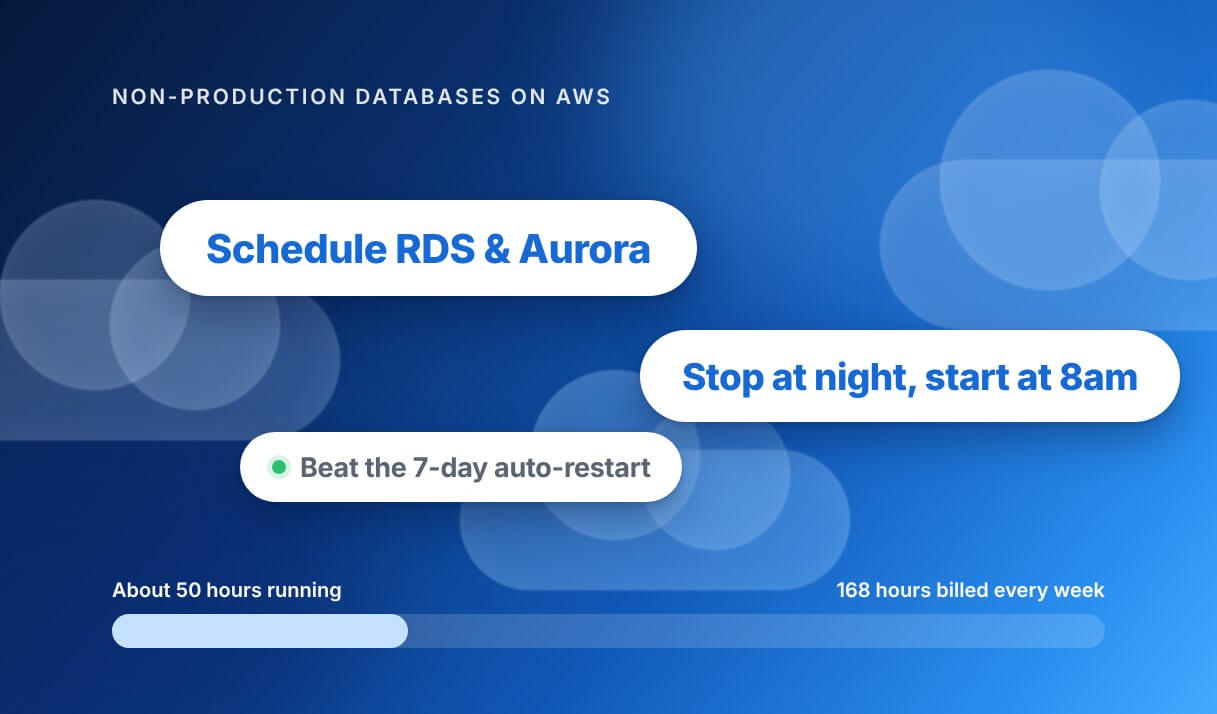
How to Schedule RDS Instances: Pay for 50 Hours a Week, Not 168

Your production database has to run around the clock. Your dev, staging, QA, and demo databases don’t — but many AWS accounts run them 24/7 anyway.

To schedule RDS instances, you stop and start them automatically on a fixed weekly pattern, so non-production databases bill for compute only during working hours. A weekday 8am–6pm schedule uses about 50 of the week’s 168 hours — roughly 217 billed compute hours a month instead of 730. Storage and backups bill either way.

That’s the whole idea. The rest of this guide covers what actually happens when you stop an RDS instance, the three ways to automate it, the AWS behavior that breaks most homegrown solutions, and a checklist to run before you roll it out.

How much does RDS scheduling really save?

Run the numbers on a single database and the case makes itself.
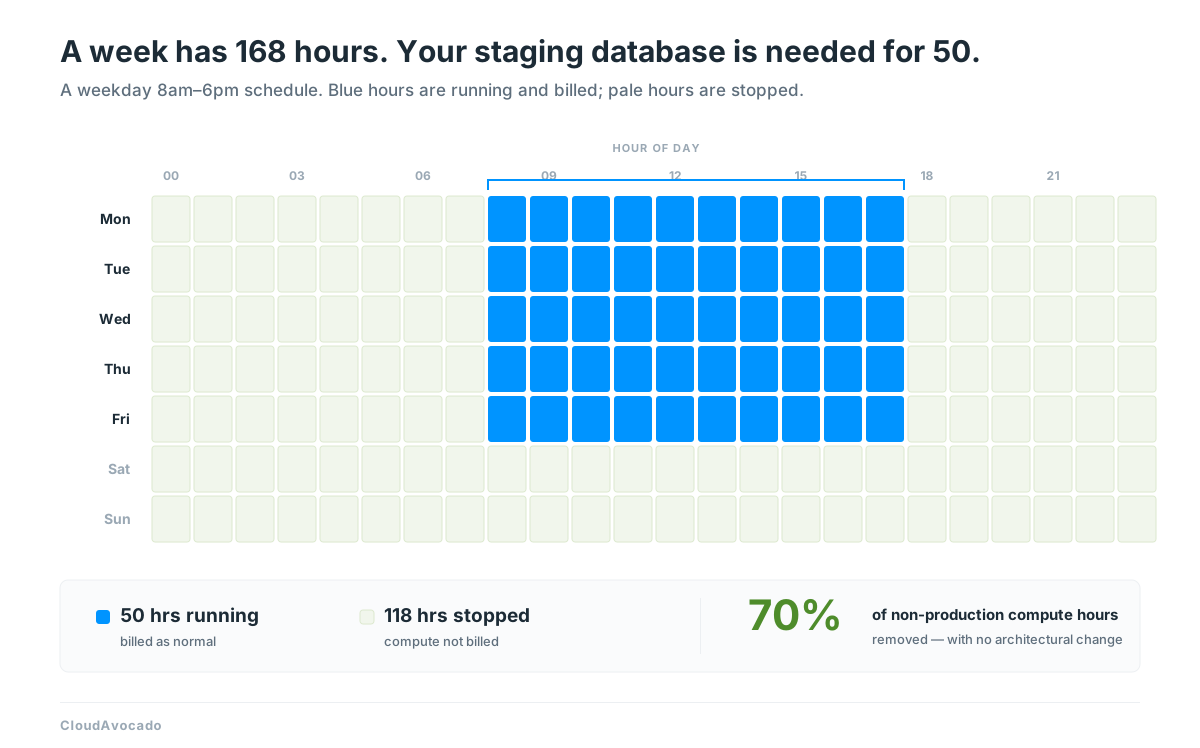
Weekly heatmap: a weekday 8am–6pm schedule uses 50 of a week's 168 hours
A weekday 8am–6pm schedule uses 50 of a week’s 168 hours. The other 118 are compute you stop paying for.

One staging database on a business-hours schedule stops billing for 118 compute hours every week — about 6,100 hours a year. Few teams have just one non-production database. Multiply those idle hours across every dev, QA and demo instance and you get a large, predictable line on the bill you can remove with no re-architecting, no performance risk to production, and no multi-year commitment.

It’s the same logic behind scheduling your EC2 instances, applied to your databases.
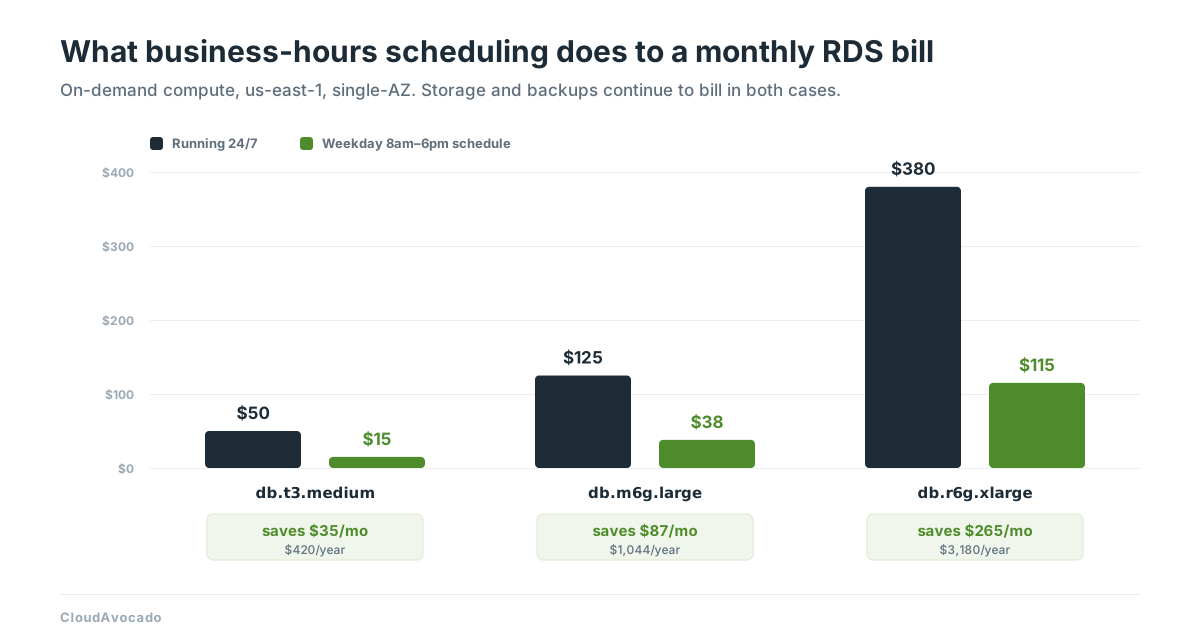
RDS compute cost for three instance sizes running 24/7 versus on a business-hours schedule
The same three instance sizes, before and after a business-hours schedule.

What happens when you stop an RDS instance?

Stopping is not deleting. Your data, automated backups, endpoint, parameter groups, and option groups all survive. When the instance starts again it keeps the same endpoint, so connection strings don’t change and nothing downstream needs reconfiguring.

What you stop paying for: instance hours — the compute.

What you keep paying for:

  • Provisioned storage (gp3, io1/io2)
  • Automated backup and manual snapshot storage
  • Provisioned IOPS, where configured

On many non-production databases, instance hours outweigh storage, so stopping them removes the larger share of the spend even though storage keeps ticking.
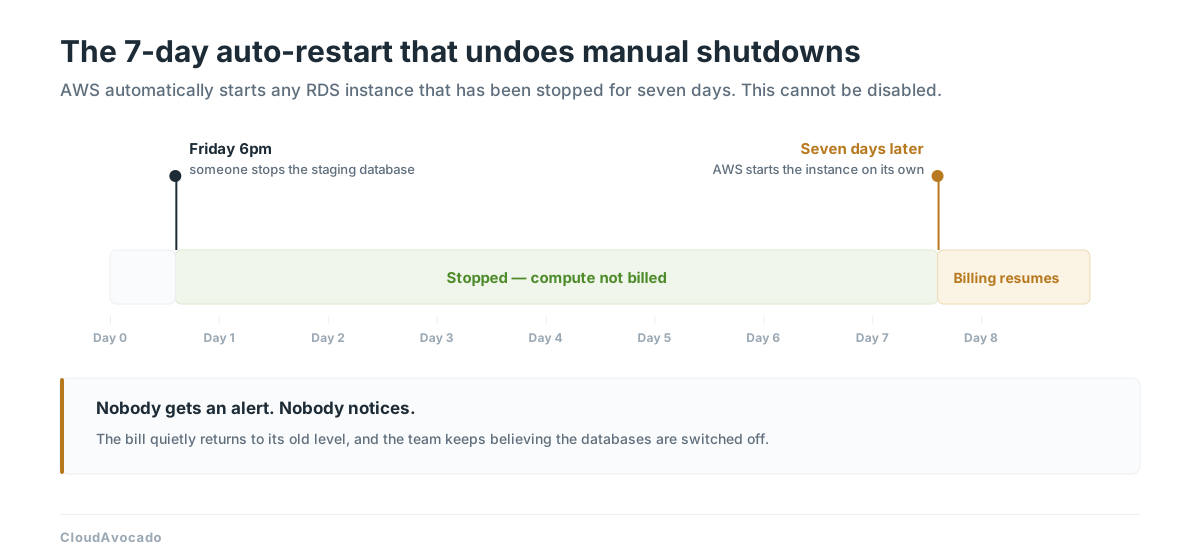
Timeline of a stopped RDS instance automatically restarting after seven days
A stopped RDS instance starts itself again after seven days — and resumes billing for compute hours.

The 7-day auto-restart that breaks manual approaches

Here’s the AWS behavior that catches many teams: a stopped RDS instance automatically restarts after seven days.

Stop a staging database on Friday afternoon, forget it over a quiet sprint, and AWS brings it back online the following Friday — billing every hour after that, whether anyone connects or not. AWS does this so instances receive required maintenance and patching, and there’s no setting to disable it.

The practical consequence: “we’ll just stop them manually when we’re done” is not a cost strategy. It works for a week, then quietly reverses itself. Any real RDS scheduling approach has to re-stop instances after the auto-restart, which is exactly where the three methods below start to differ.

When the 7-day rule actually bites: a daily business-hours schedule never leaves a database stopped for a full week. It stops every evening and starts every morning, so the auto-restart rarely comes into play. The rule matters when a database is parked for longer: over the holidays, between projects, or when the plan is “keep it off until someone needs it”. AWS brings those databases back during their maintenance window to apply maintenance, then leaves them running.

Which RDS instances can’t be stopped

Confirm your fleet before you automate:

  • Instances with read replicas, and read replicas themselves
  • SQL Server in a Multi-AZ deployment
  • Clusters and instances that are part of a Blue/Green deployment

For Aurora, you stop the whole cluster rather than individual instances — and the same 7-day auto-restart applies. If the workload suits it, Aurora Serverless v2 can scale down to zero ACUs when idle on supported engine versions (with minimum capacity set to 0), reaching a similar outcome without explicit scheduling — storage still bills. For provisioned Aurora and standard RDS, scheduling is the lever.

Method 1: Stop RDS instances manually

The console path takes about thirty seconds: RDS → Databases → select the instance → Actions → Stop temporarily.

Why it fails at scale: it depends on a human remembering, every evening and every Friday, across every environment — and on that same human noticing when the 7-day auto-restart undoes the work. In practice, manual stopping rarely survives more than a few weeks.

Method 2: Automate RDS scheduling with Lambda and EventBridge

The standard DIY pattern: an EventBridge rule fires on a cron schedule, invokes a Lambda function, and the function stops or starts every RDS instance carrying a specific tag such as Schedule=business-hours.

To make this production-ready you’ll also need:

  • A mirrored start function
  • Two schedules — classic EventBridge rules run cron in UTC, so daylight saving shifts your “8am” twice a year; use EventBridge Scheduler instead, which accepts a time zone and adjusts for daylight saving
  • An IAM role with rds:DescribeDBInstances, rds:ListTagsForResource, rds:StopDBInstance, rds:StartDBInstance
  • Error handling for instances that are mid-backup, mid-modification, or otherwise not in a stoppable state
  • Separate logic for Aurora clusters, which use different API calls
  • A recurring job to re-stop instances that AWS auto-restarted on day seven

Best for: teams with one or two environments, spare platform-engineering capacity, and a tolerance for owning internal tooling.

The honest total cost of ownership: the code is now a small internal product. Schedules live in cron expressions, so “staging should stay up until 8pm on Thursdays now” becomes a pull request rather than a settings change. There’s no dashboard showing what’s scheduled, what got skipped, or how much was actually saved — and the day you want the same behavior for EC2, Auto Scaling Groups, or a managed database outside AWS, you’re extending it again.

What about AWS Instance Scheduler? AWS publishes a CloudFormation solution that packages this pattern more robustly than a hand-rolled Lambda. It’s a legitimate option — but you’re still deploying and maintaining stack infrastructure, schedules live in DynamoDB and are managed with a command-line tool (or by editing the table), so there’s no graphical interface a non-engineer can use. It’s a solution you operate, not a service you use.

On the 7-day restart, Instance Scheduler does better than DIY. By default it adds each database’s preferred maintenance window to its schedule as a running period. It starts the instance for the window and stops it again once maintenance is complete. If maintenance overruns the window, the instance keeps running until the first scheduling interval after it finishes. If a database comes back up outside its schedule for any other reason, AWS’s documentation says it is stopped before the next scheduled stop only when the schedule’s enforced option is turned on.

Skip the maintenance
CloudAvocado schedules RDS, Aurora, EC2, and Auto Scaling Groups from one visual calendar — no Lambda functions, no CloudFormation stacks, no cron. Start a free trial →

Method 3: Schedule RDS instances without scripts, using CloudAvocado

This is the gap CloudAvocado was built to close: scheduling that takes minutes to set up and nothing to maintain afterwards.

Connect your AWS accounts through a standard IAM role, and CloudAvocado automatically discovers your RDS instances and Aurora clusters alongside your EC2 instances and Auto Scaling Groups. Then:

  1. Select a resource — or a whole tag group. Schedule every database tagged env:staging in a single action rather than one at a time.
  2. Draw the schedule on a weekly calendar. Weekdays 8am–6pm in your team’s local timezone. No cron syntax, no UTC arithmetic, no daylight-saving bugs.
  3. Leave it alone. CloudAvocado stops and starts on schedule. If AWS restarts a stopped database on day seven, CloudAvocado stops it again right away, with no extra setting to turn on, so instances don’t quietly come back online and start billing.

Three things that matter once it’s running:

  • Overrides without tickets. An engineer who needs staging at 9pm clicks start, works, and the schedule resumes on its own. Nobody edits automation code to work late.
  • Savings you can actually report. Every scheduled resource shows what it would have cost running 24/7 versus what it actually cost — the number finance asks for, without building a report.
  • One system across your whole non-production stack. The same schedules cover EC2, RDS, Aurora, and Auto Scaling Groups, so application servers and their databases sleep and wake together instead of drifting out of sync.

Savings start the first night a schedule runs, so they show up in the current month’s bill rather than the next quarter’s forecast.

Which RDS scheduling method should you use?

ManualLambda + EventBridgeAWS Instance SchedulerCloudAvocado
Typical setup timeSeconds per instance1–3 daysHalf a day to 2 days~5 minutes
Ongoing maintenanceEvery evening, foreverYou own the codeYou own the stackNone on your side
Handles the 7-day auto-restartNoOnly if you build itYes, by default: runs through the maintenance window, then stopsYes, stops it again right away, no setting needed
Timezone / DST handlingHuman judgmentUTC with rules; time zones with EventBridge SchedulerConfigurableBuilt in
Schedule changesN/ACode changeCLI or DynamoDB editClick and drag
Aurora clustersManual, separate actionSeparate API calls to writeSupportedSupported
Override for late workManual startManual startManual startSelf-service, schedule resumes
Savings reportingNoneBuild it yourselfCLI estimate only, no per-resource reportPer-resource, automatic
Covers EC2 and ASGs tooManualExtend the codeSupportedSupported
Best forOne database, one-offTeams with platform capacity to spareTeams standardized on AWS-native toolingTeams who want scheduling to just work

In short: if you have platform-engineering capacity to spare and only two environments, the Lambda route is perfectly reasonable. What doesn’t hold up is the manual route — it depends on a human remembering, and the 7-day auto-restart silently undoes it.

Before you roll it out: a 5-point checklist

  1. Storage still bills. Stopped isn’t free. If a database has been stopped for months, the real decision is snapshot-and-delete, not schedule.
  2. Check what’s stoppable. Read replicas and their sources, SQL Server Multi-AZ deployments, and Blue/Green deployments are excluded.
  3. Mind your pipelines. CI jobs, nightly ETL, and scheduled tests that touch staging must run inside the “on” window — or the window must stretch to cover them.
  4. Expect pending changes at start. Pending parameter- or option-group changes apply when the instance starts, and skipped maintenance catches up in the next maintenance window.
  5. Start with one environment. Put staging on a business-hours schedule, then compare two weeks of billing. That delta will make the case for the rest of your estate more convincingly than any projection.

Frequently asked questions

How much can I save by scheduling RDS instances? A weekday 8am–6pm schedule bills about 50 of a week’s 168 hours — roughly 217 of a month’s 730. You stop paying for the other ~118 compute hours each week. Storage and backups continue to bill, so the total saving on a given database depends on how much of its cost is storage rather than instance hours.

Does stopping an RDS instance delete my data? No. Data, automated backups, parameter groups, and the endpoint are all preserved. The instance restarts with the same endpoint, so connection strings don’t change.

Why does my stopped RDS instance keep restarting? AWS automatically starts any RDS instance that has been stopped for seven days so it can receive required maintenance. The behavior can’t be disabled — scheduling automation has to detect and re-stop those instances. CloudAvocado stops it again as soon as it comes back up, with nothing to configure.

Can I schedule Aurora clusters? Yes, but you stop and start the cluster rather than individual instances, and the 7-day auto-restart still applies. Aurora Serverless v2 is an alternative, since it can scale to zero ACUs when idle.

Is AWS Instance Scheduler free? The solution is open source with no license fee, but you pay for what it deploys — Lambda, DynamoDB, KMS, CloudWatch Logs and Metrics. AWS estimates roughly $9 to $630 a month depending on fleet size, plus the engineering time to deploy, configure, and maintain the stack.

What else should I schedule besides RDS? Application servers should sleep on the same pattern as their databases. Start with EC2 instance scheduling, then extend to Auto Scaling Groups so entire non-production environments power down as a unit.

Start with one database

Non-production databases running 24/7 are among the most predictable waste on an AWS bill — and the easiest to remove, because nothing about the architecture has to change. Pick your staging database, put it on a business-hours schedule this week, and check the numbers in two weeks.

If you’d rather not maintain Lambda functions and cron expressions to get there, start your free CloudAvocado trial — connecting an AWS account and scheduling your first RDS instance takes about five minutes, and the savings start the same night.
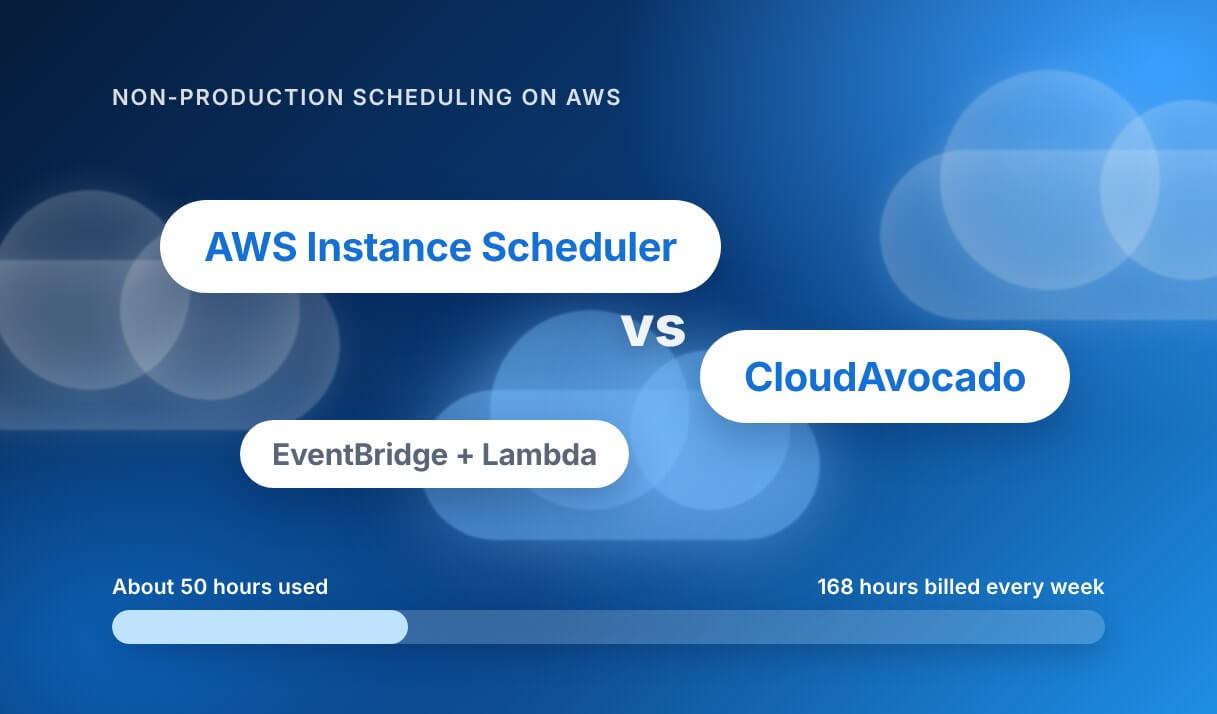
AWS Instance Scheduler vs CloudAvocado: When Native Is Enough and When It Isn’t

AWS has no managed scheduler for non-production resources. What it offers is Instance Scheduler, a CloudFormation stack you deploy and maintain, and a Quick Setup wizard that covers EC2 and nothing else. Both are fine for a small, single-account estate of EC2 and RDS.

They stop at containers, SageMaker, overrides, a UI, and anything that needs ordering. Every limit in this post links to AWS’s own documentation or an open issue on AWS’s own GitHub repository.

CloudAvocado covers EC2, RDS, Auto Scaling, ECS, EKS, DocumentDB, SageMaker and MongoDB Atlas on one schedule, with snooze, an audit log and dashboards across accounts, and nothing to deploy. This post lays out where the native tools are enough and where they are not.

What AWS gives you natively

AWS has no managed scheduling service. It has a solution you deploy, a Quick Setup wizard, and the building blocks to write your own. Ask on re:Post how to shut an EC2 instance down every night and the accepted answer lists exactly those three routes.

OptionServicesHow you configure itCostMaintained by
Instance Scheduler on AWSEC2, Auto Scaling groups, RDS, Aurora, DocumentDB, Neptune (supported services)CloudFormation hub and spoke stacks, then a Python scheduler CLI writing to a DynamoDB table (CLI docs)AWS estimates $9.15 to $630 per month for the Lambda, DynamoDB, CloudWatch and KMS it runs on (cost page)You. It is an open-source solution you deploy and upgrade
SSM Quick Setup Resource SchedulerEC2 only (docs)Console wizard: one tag key and value, days of the week, start and stop timesNo charge for Quick Setup itselfAWS runs it; you own the tags
EventBridge + Lambda (DIY)Anything with an APICron rules, a function per service, IAM roles per accountCents in Lambda, plus engineering hoursYou
Per-service scheduled scalingECS services, EKS node groupsScaling actions you wire yourself; for EKS, AWS’s own cost guide points to sample Kubernetes CronJobs (Prescriptive Guidance)No charge, except the timeYou, one mechanism per service

None of this is bad. Instance Scheduler is solid engineering and AWS keeps it patched. The question is what it does not do, because that list is where your hours go.

Where it stops

Every item below is either in the AWS documentation or an open issue on the Instance Scheduler GitHub repository as of this writing.

  • Containers. ECS and EKS are not on the supported list. ECS Fargate scheduling was requested in November 2024 (#582) and again in August 2026 (#702); the reply was “We’ve added it to our backlog.” For EKS, AWS’s cost guide tells you to scale dev and staging to zero with sample CronJobs. That is advice, not a scheduler.
  • SageMaker. Not supported. A request for SageMaker endpoint support, #601, has been open since March 2025.
  • No override or snooze. Three open requests ask for a way to say “leave this one alone until Thursday”: an instance override (#598), an exclusion tag (#641, “added to our backlog for evaluation”) and an official ignore option (#685). Quick Setup is event-driven: it starts whatever is stopped at the start time, so an instance someone stopped on purpose comes back in the morning and nobody knows who stopped it or why.
  • No UI. The scheduler CLI page is the configuration surface: create, update and delete periods and schedules from a terminal. One caveat there is worth reading twice: update-schedule and update-period remove any argument you omit. Expanded dashboards are an open request (#651).
  • No ordering. Periods are defined by begin time, end time, weekdays and months (CLI docs). There is no flag for “start the database, then the app servers.” You stagger times by hand. Also, only one one-sided start per day is supported, so an every-four-hours schedule silently did nothing (#542).
  • Quick Setup is one tag. Each configuration targets a single tag key and value, EC2 only, up to 5,000 instances per configuration per Region (docs). Two teams with two timetables means two configurations.
  • RDS restarts itself after seven days. You can stop a DB instance for up to seven days, then RDS starts it for maintenance. The re:Post workaround is to schedule a one-hour start every week so AWS never does it for you. A scheduler that does not know this leaves you paying for a database nobody started.
  • Restarts can fail on capacity. In January 2026 AWS added an opt-in retry on alternate instance types. That AWS shipped it tells you how often a morning start used to fail on capacity.
  • Detection is not action. Compute Optimizer flags idle resources across twelve types, but the recommended actions are manual. The AWS FinOps Agent, in preview since June 2026, runs on a role for reading cost, usage and operational data; it opens tickets, it does not stop instances. Something still has to turn the thing off.

What “free” costs

Instance Scheduler has no license fee. It does have a bill. AWS’s own cost page estimates about $9.15 a month for a small deployment (5 accounts, 20 resources, 3 schedules), about $161 for a medium one (250 accounts, 1,000 resources, 15 schedules) and about $630 for a large one (1,000 accounts, 5,000 resources, 500 schedules). The components are Lambda, DynamoDB, CloudWatch Logs, CloudWatch Metrics and KMS, running every five minutes.

Then there is upkeep. Between April and October 2026 the project shipped a dozen releases, v3.2.2 through v3.2.13, all dependency, security and bug fixes (changelog). Each is a stack update someone schedules, runs and checks. Add onboarding a new account, debugging a schedule that did not fire, and answering “why is staging up on a Sunday” in Slack.

The clearest sign of what the hours are worth: consulting firms sell Instance Scheduler setup as a professional service on AWS Marketplace, with pricing by private offer. When a free tool has a paid installation market, the tool was never the cost.

Why scheduling first

A week has 168 hours. A team that works roughly ten hours a day on weekdays uses about 50 of them. A non-production resource that nobody turns off is billed for all 168. Rightsizing changes the price per hour; scheduling changes the number of hours, and it is reversible the next morning.

One worked example with on-demand numbers you can swap for your own: 10 instances at $0.20 per hour, which is 10 x $0.20 = $2.00 per hour for the group.

Hours on per weekCost per weekCost per year (x52)
Always on168168 x $2.00 = $336$17,472
Business hours5050 x $2.00 = $100$5,200
Difference118$236$12,272

Ten small instances, one schedule, about $12,000 a year. A database, an EKS node group or a SageMaker notebook costs more per hour than $0.20, which is why the services a scheduler covers matter more than its price. The same arithmetic, with a larger fleet, is in the ParkMyCloud comparison.

AWS Instance Scheduler alternative: CloudAvocado vs native vs DIY

CloudAvocadoInstance Scheduler on AWSEventBridge + Lambda
StatusSaaS, 14-day free trial, listed on AWS MarketplaceOpen-source solution you deploy, v3.2.13 (October 2026)Your code
SetupOne IAM role created from a shown permissions list, no agents; free read-only scan firstCloudFormation hub stack, a spoke stack per account, scheduler CLIFunctions, roles and cron rules per account
EC2 and RDSYes; RDS from the Advanced planYes, plus Aurora, DocumentDB, NeptuneIf you write it
ECS and EKSYes: ECS services, EKS node groups to zero and back (Pro)No (#702 open)If you write it, per service
SageMaker, ASG, AtlasSageMaker notebooks, Auto Scaling groups, DocumentDB, MongoDB Atlas, plus Google Cloud and Azure (Pro)ASG and DocumentDB yes; SageMaker no (#601); AWS onlyAWS only, if you write it
Tag schedulesBy tag or individually; autotagging applies schedule tags to new resourcesBy tagBy tag, if you write it
SnoozeOn a schedule or a single resource; it rejoins the schedule afterwardsNot built in (#641, #685, #598)If you write it
Multi-account dashboardAcross accounts, tags and regionsNo console; dashboards requested in #651CloudWatch, if you build it
Savings reportingWeekly savings digest by email, dashboardsA CLI usage estimate per scheduleNone unless built
Audit logEvery actionCloudWatch LogsCloudWatch Logs
OrderingComing (Environments)NoIf you write it
Who can run itAnyone with a seat; SSO on ProWhoever has the CLI and AWS credentialsThe engineer who wrote it
CostFree for 10 resources; $49/month for 25; $299/month for 100; $3/month per extra resourceAbout $9.15 to $630/month in AWS charges, plus upkeep hoursCents in Lambda, plus engineering hours

Two rows deserve a note. Snooze is the one I hear about most: someone needs staging up late for a demo, or down for a week, and wants the schedule to pick back up on its own. In CloudAvocado that is one click on the resource or the schedule, and the audit log records it. Ordering is the one we have not shipped. Environments, which start and stop a group of resources in sequence, is in development, and I will not call it available until it is.

When to use the native tool

The native tools are the right choice when most of this is true:

  • One account, or a handful, all EC2 and RDS.
  • One schedule, or two, that rarely change.
  • The only people who need to change a schedule already have AWS credentials and a terminal.
  • Nobody needs to pause a resource for a day and have it rejoin the schedule automatically.
  • Policy says every tool must run inside your own account, so a SaaS with an IAM role is off the table.
  • The Quick Setup wizard covers your estate: EC2, one tag, one timetable.

If you ticked most of those, deploy Instance Scheduler or Quick Setup this week and move on. If you ticked two or fewer, the difference is time: with CloudAvocado there is no CloudFormation stack to deploy per account, no scheduler CLI to learn, no release to roll out every few weeks, and no Lambda to debug when a start fails. Connect an account, set working hours, pick resources by tag, and the first schedule runs that night. The hours your engineer would spend maintaining a scheduler go back to the work you hired them for.

Your first schedule in five minutes

  1. Connect an account. Create one IAM role from the permissions list CloudAvocado shows you. No agent. The first connection is read-only, so nothing is stopped until you say so.
  2. Read the scan. It lists your EC2, RDS, ECS, EKS, Auto Scaling groups, DocumentDB and SageMaker notebooks across accounts, tags and regions, with what is running 168 hours a week.
  3. Pick the resources and the hours. Select by tag, say Environment=dev, or tick resources one by one. Set weekday hours in your time zone, give staging a different timetable from dev if you like, and exclude anything you are unsure about. The EC2 scheduling walkthrough shows each screen.
  4. Switch on autotagging and the digest. New resources matching your tag get the schedule tag automatically, so next month’s dev box does not run all weekend. The weekly email tells you what was stopped and for how long. When someone needs an exception, they snooze it and the schedule resumes on its own.

FAQ

Is CloudAvocado an AWS Instance Scheduler replacement?

For EC2, Auto Scaling groups, RDS and DocumentDB, yes, with the same tag-based approach and no stack to maintain. It also covers ECS, EKS node groups, SageMaker notebooks, MongoDB Atlas, Google Cloud and Azure, which Instance Scheduler does not. It does not cover Neptune today.

Does it need an agent?

No. CloudAvocado connects through an IAM role you create from a permissions list we show you. The only optional agent is a small EC2 schedule agent for teams that want a pre-shutdown action to run on the instance. Scheduling itself never needs it.

Will it touch production?

Only resources you put on a schedule are ever stopped. The first scan is read-only, you choose resources by tag or by hand, any resource can be excluded, and every start and stop goes to the audit log. If a production instance carries a dev tag by mistake, the scan is where you see it before any schedule runs.

What about the RDS seven-day restart?

AWS starts a stopped RDS instance after seven days for maintenance (re:Post). A database on a weekday schedule is started every working morning, so it is never stopped seven days in a row and the restart never fires. If you snooze a database off for longer than a week, RDS will start it whatever tool you use; give anything you want down for weeks a one-hour weekly start. Storage bills while stopped either way; that is RDS, not the scheduler. For the full picture, see how to schedule RDS instances.

Can I keep Instance Scheduler for some accounts?

Yes. Connect only the accounts with ECS, EKS or many hands on them, and leave a working Instance Scheduler stack alone elsewhere. Just keep each resource on one scheduler, not two, so start and stop events do not fight.

Connect an account and run the free read-only scan. It takes five minutes and shows you what is running 168 hours a week before you schedule anything.