Your production database has to run around the clock. Your dev, staging, QA, and demo databases don’t — but many AWS accounts run them 24/7 anyway.
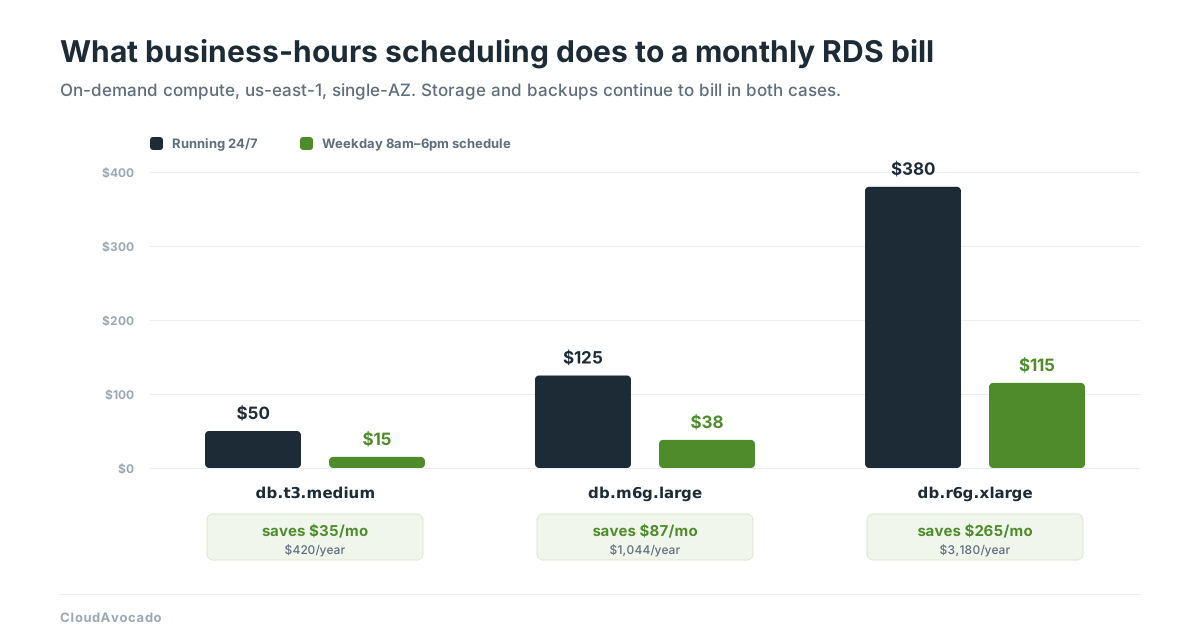
To schedule RDS instances, you stop and start them automatically on a fixed weekly pattern, so non-production databases bill for compute only during working hours. A weekday 8am–6pm schedule uses about 50 of the week’s 168 hours — roughly 217 billed compute hours a month instead of 730. Storage and backups bill either way.
That’s the whole idea. The rest of this guide covers what actually happens when you stop an RDS instance, the three ways to automate it, the AWS behavior that breaks most homegrown solutions, and a checklist to run before you roll it out.
How much does RDS scheduling really save?
Run the numbers on a single database and the case makes itself.
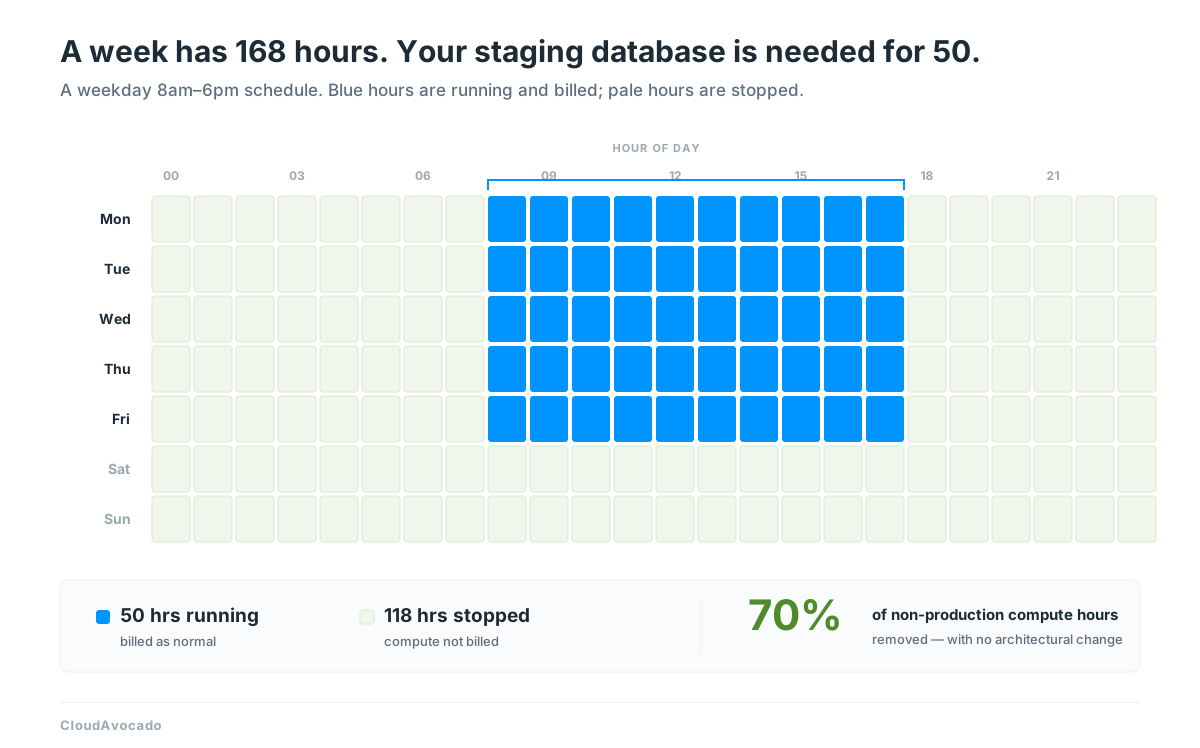
One staging database on a business-hours schedule stops billing for 118 compute hours every week — about 6,100 hours a year. Few teams have just one non-production database. Multiply those idle hours across every dev, QA and demo instance and you get a large, predictable line on the bill you can remove with no re-architecting, no performance risk to production, and no multi-year commitment.
It’s the same logic behind scheduling your EC2 instances, applied to your databases.
What happens when you stop an RDS instance?
Stopping is not deleting. Your data, automated backups, endpoint, parameter groups, and option groups all survive. When the instance starts again it keeps the same endpoint, so connection strings don’t change and nothing downstream needs reconfiguring.
What you stop paying for: instance hours — the compute.
What you keep paying for:
- Provisioned storage (gp3, io1/io2)
- Automated backup and manual snapshot storage
- Provisioned IOPS, where configured
On many non-production databases, instance hours outweigh storage, so stopping them removes the larger share of the spend even though storage keeps ticking.
The 7-day auto-restart that breaks manual approaches
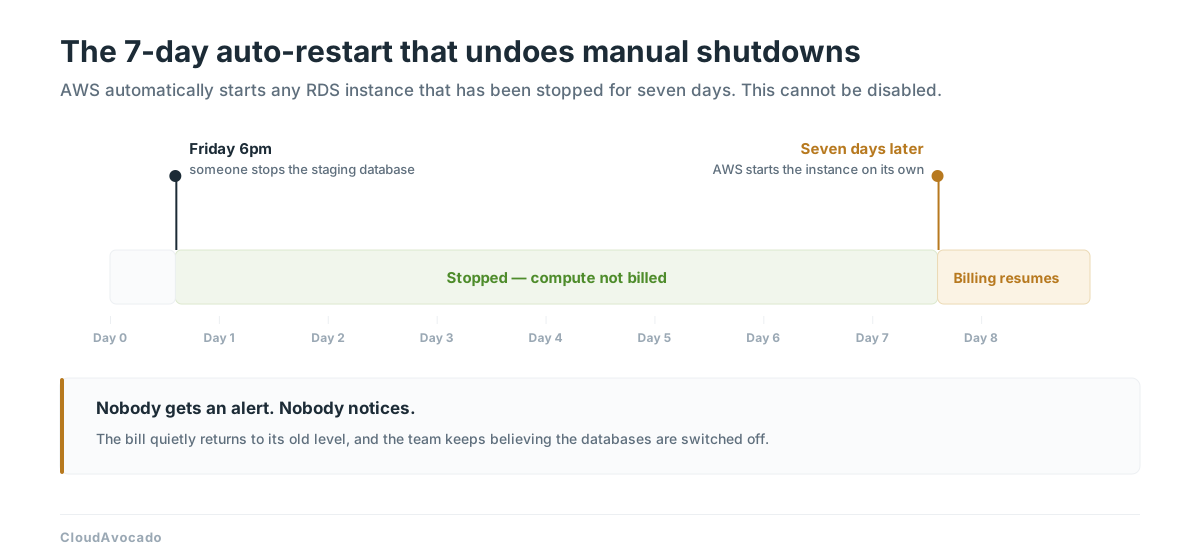
Here’s the AWS behavior that catches many teams: a stopped RDS instance automatically restarts after seven days.
Stop a staging database on Friday afternoon, forget it over a quiet sprint, and AWS brings it back online the following Friday — billing every hour after that, whether anyone connects or not. AWS does this so instances receive required maintenance and patching, and there’s no setting to disable it.
The practical consequence: “we’ll just stop them manually when we’re done” is not a cost strategy. It works for a week, then quietly reverses itself. Any real RDS scheduling approach has to re-stop instances after the auto-restart, which is exactly where the three methods below start to differ.
When the 7-day rule actually bites: a daily business-hours schedule never leaves a database stopped for a full week. It stops every evening and starts every morning, so the auto-restart rarely comes into play. The rule matters when a database is parked for longer: over the holidays, between projects, or when the plan is “keep it off until someone needs it”. AWS brings those databases back during their maintenance window to apply maintenance, then leaves them running.
Which RDS instances can’t be stopped
Confirm your fleet before you automate:
- Instances with read replicas, and read replicas themselves
- SQL Server in a Multi-AZ deployment
- Clusters and instances that are part of a Blue/Green deployment
For Aurora, you stop the whole cluster rather than individual instances — and the same 7-day auto-restart applies. If the workload suits it, Aurora Serverless v2 can scale down to zero ACUs when idle on supported engine versions (with minimum capacity set to 0), reaching a similar outcome without explicit scheduling — storage still bills. For provisioned Aurora and standard RDS, scheduling is the lever.
Method 1: Stop RDS instances manually
The console path takes about thirty seconds: RDS → Databases → select the instance → Actions → Stop temporarily.
Why it fails at scale: it depends on a human remembering, every evening and every Friday, across every environment — and on that same human noticing when the 7-day auto-restart undoes the work. In practice, manual stopping rarely survives more than a few weeks.
Method 2: Automate RDS scheduling with Lambda and EventBridge
The standard DIY pattern: an EventBridge rule fires on a cron schedule, invokes a Lambda function, and the function stops or starts every RDS instance carrying a specific tag such as Schedule=business-hours.
To make this production-ready you’ll also need:
- A mirrored start function
- Two schedules — classic EventBridge rules run cron in UTC, so daylight saving shifts your “8am” twice a year; use EventBridge Scheduler instead, which accepts a time zone and adjusts for daylight saving
- An IAM role with
rds:DescribeDBInstances,rds:ListTagsForResource,rds:StopDBInstance,rds:StartDBInstance - Error handling for instances that are mid-backup, mid-modification, or otherwise not in a stoppable state
- Separate logic for Aurora clusters, which use different API calls
- A recurring job to re-stop instances that AWS auto-restarted on day seven
Best for: teams with one or two environments, spare platform-engineering capacity, and a tolerance for owning internal tooling.
The honest total cost of ownership: the code is now a small internal product. Schedules live in cron expressions, so “staging should stay up until 8pm on Thursdays now” becomes a pull request rather than a settings change. There’s no dashboard showing what’s scheduled, what got skipped, or how much was actually saved — and the day you want the same behavior for EC2, Auto Scaling Groups, or a managed database outside AWS, you’re extending it again.
What about AWS Instance Scheduler? AWS publishes a CloudFormation solution that packages this pattern more robustly than a hand-rolled Lambda. It’s a legitimate option — but you’re still deploying and maintaining stack infrastructure, schedules live in DynamoDB and are managed with a command-line tool (or by editing the table), so there’s no graphical interface a non-engineer can use. It’s a solution you operate, not a service you use.
On the 7-day restart, Instance Scheduler does better than DIY. By default it adds each database’s preferred maintenance window to its schedule as a running period. It starts the instance for the window and stops it again once maintenance is complete. If maintenance overruns the window, the instance keeps running until the first scheduling interval after it finishes. If a database comes back up outside its schedule for any other reason, AWS’s documentation says it is stopped before the next scheduled stop only when the schedule’s enforced option is turned on.
Skip the maintenance
CloudAvocado schedules RDS, Aurora, EC2, and Auto Scaling Groups from one visual calendar — no Lambda functions, no CloudFormation stacks, no cron. Start a free trial →
Method 3: Schedule RDS instances without scripts, using CloudAvocado
This is the gap CloudAvocado was built to close: scheduling that takes minutes to set up and nothing to maintain afterwards.
Connect your AWS accounts through a standard IAM role, and CloudAvocado automatically discovers your RDS instances and Aurora clusters alongside your EC2 instances and Auto Scaling Groups. Then:
- Select a resource — or a whole tag group. Schedule every database tagged
env:stagingin a single action rather than one at a time. - Draw the schedule on a weekly calendar. Weekdays 8am–6pm in your team’s local timezone. No cron syntax, no UTC arithmetic, no daylight-saving bugs.
- Leave it alone. CloudAvocado stops and starts on schedule. If AWS restarts a stopped database on day seven, CloudAvocado stops it again right away, with no extra setting to turn on, so instances don’t quietly come back online and start billing.
Three things that matter once it’s running:
- Overrides without tickets. An engineer who needs staging at 9pm clicks start, works, and the schedule resumes on its own. Nobody edits automation code to work late.
- Savings you can actually report. Every scheduled resource shows what it would have cost running 24/7 versus what it actually cost — the number finance asks for, without building a report.
- One system across your whole non-production stack. The same schedules cover EC2, RDS, Aurora, and Auto Scaling Groups, so application servers and their databases sleep and wake together instead of drifting out of sync.
Savings start the first night a schedule runs, so they show up in the current month’s bill rather than the next quarter’s forecast.
Which RDS scheduling method should you use?
| Manual | Lambda + EventBridge | AWS Instance Scheduler | CloudAvocado | |
|---|---|---|---|---|
| Typical setup time | Seconds per instance | 1–3 days | Half a day to 2 days | ~5 minutes |
| Ongoing maintenance | Every evening, forever | You own the code | You own the stack | None on your side |
| Handles the 7-day auto-restart | No | Only if you build it | Yes, by default: runs through the maintenance window, then stops | Yes, stops it again right away, no setting needed |
| Timezone / DST handling | Human judgment | UTC with rules; time zones with EventBridge Scheduler | Configurable | Built in |
| Schedule changes | N/A | Code change | CLI or DynamoDB edit | Click and drag |
| Aurora clusters | Manual, separate action | Separate API calls to write | Supported | Supported |
| Override for late work | Manual start | Manual start | Manual start | Self-service, schedule resumes |
| Savings reporting | None | Build it yourself | CLI estimate only, no per-resource report | Per-resource, automatic |
| Covers EC2 and ASGs too | Manual | Extend the code | Supported | Supported |
| Best for | One database, one-off | Teams with platform capacity to spare | Teams standardized on AWS-native tooling | Teams who want scheduling to just work |
In short: if you have platform-engineering capacity to spare and only two environments, the Lambda route is perfectly reasonable. What doesn’t hold up is the manual route — it depends on a human remembering, and the 7-day auto-restart silently undoes it.
Before you roll it out: a 5-point checklist
- Storage still bills. Stopped isn’t free. If a database has been stopped for months, the real decision is snapshot-and-delete, not schedule.
- Check what’s stoppable. Read replicas and their sources, SQL Server Multi-AZ deployments, and Blue/Green deployments are excluded.
- Mind your pipelines. CI jobs, nightly ETL, and scheduled tests that touch staging must run inside the “on” window — or the window must stretch to cover them.
- Expect pending changes at start. Pending parameter- or option-group changes apply when the instance starts, and skipped maintenance catches up in the next maintenance window.
- Start with one environment. Put staging on a business-hours schedule, then compare two weeks of billing. That delta will make the case for the rest of your estate more convincingly than any projection.
Frequently asked questions
How much can I save by scheduling RDS instances? A weekday 8am–6pm schedule bills about 50 of a week’s 168 hours — roughly 217 of a month’s 730. You stop paying for the other ~118 compute hours each week. Storage and backups continue to bill, so the total saving on a given database depends on how much of its cost is storage rather than instance hours.
Does stopping an RDS instance delete my data? No. Data, automated backups, parameter groups, and the endpoint are all preserved. The instance restarts with the same endpoint, so connection strings don’t change.
Why does my stopped RDS instance keep restarting? AWS automatically starts any RDS instance that has been stopped for seven days so it can receive required maintenance. The behavior can’t be disabled — scheduling automation has to detect and re-stop those instances. CloudAvocado stops it again as soon as it comes back up, with nothing to configure.
Can I schedule Aurora clusters? Yes, but you stop and start the cluster rather than individual instances, and the 7-day auto-restart still applies. Aurora Serverless v2 is an alternative, since it can scale to zero ACUs when idle.
Is AWS Instance Scheduler free? The solution is open source with no license fee, but you pay for what it deploys — Lambda, DynamoDB, KMS, CloudWatch Logs and Metrics. AWS estimates roughly $9 to $630 a month depending on fleet size, plus the engineering time to deploy, configure, and maintain the stack.
What else should I schedule besides RDS? Application servers should sleep on the same pattern as their databases. Start with EC2 instance scheduling, then extend to Auto Scaling Groups so entire non-production environments power down as a unit.
Start with one database
Non-production databases running 24/7 are among the most predictable waste on an AWS bill — and the easiest to remove, because nothing about the architecture has to change. Pick your staging database, put it on a business-hours schedule this week, and check the numbers in two weeks.
If you’d rather not maintain Lambda functions and cron expressions to get there, start your free CloudAvocado trial — connecting an AWS account and scheduling your first RDS instance takes about five minutes, and the savings start the same night.