
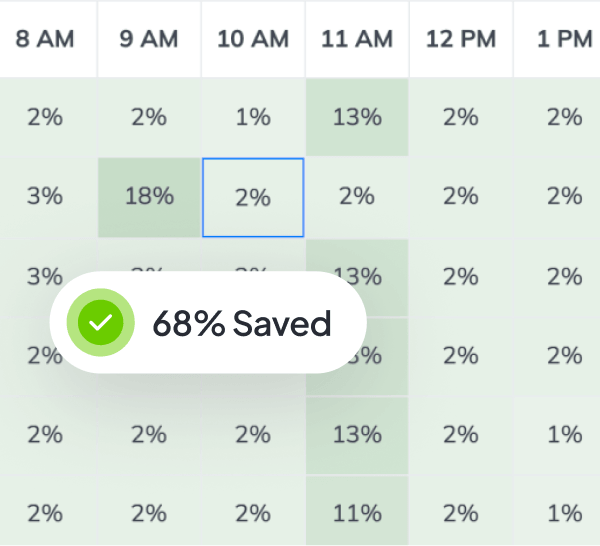
Find idle hours.
Stop paying for them.
Most cloud waste comes from resources left running. Dev and test environments run 24/7, services stay on during weekends, temporary resources are forgotten. Every unused hour costs you money. Cloud bills feel random because idle time keeps adding up. CloudAvocado stops the waste. Resources run only when needed.
Product Capabilities
Smart scheduling removes idle cloud time without scripts or manual work.

Start and stop schedules

Built for non-production enviroments

Flexible schedules

Schedule visibility
Set working hours once. Resources stop outside those hours and start again when work resumes.
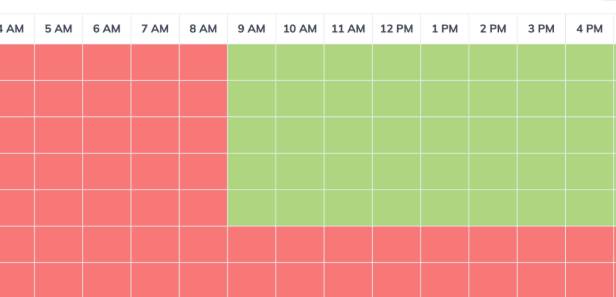
Works with dev, test, and temporary environments by default. Production workloads stay out of scope.
Use different schedules per environment. Pause or exclude resources when needed.
You can always see which resources are scheduled, when they start and stop, and what’s excluded.
Comparison
Before
Resources run 24/7 “just in case”
Dev and test environments stay on overnight and on weekends
Shutdowns depend on people remembering
Each team follows different rules
Cloud bills grow quietly until someone asks questions
After
Resources run only during working hours
Non-production environments stop outside working hours
Clear schedules replace manual habits
The same rules apply across teams and environments
Cloud spend is predictable and easy to explain
What our clients say
Key Benefits:
Thousands of $ saved monthly
<5 min setup per tenant
Zero training required
Automated scheduling
CloudAvocado saves us thousands of dollars every month and only costs a fraction of that amount. Anyone who runs AWS EC2 instances will be able to find a use for CloudAvocado — even those with little time to spare.

Paul V.
Small Business

Key Benefits:
Simple setup process
Multi-account management
Extensive automation options
Clear cost insights dashboard
We have decent dev and stage environments in different AWS accounts, which can be stopped for a non working hours. CloudAvocado helped us stop MongoDB Atlas. How it shows data and dashboard – just great, it helps us focus on things where we can save the most, from a cost perspective.
Mike F.
CEO of Insoftex
Key Benefits:
Automated RDS scheduling
Zero performance impact
Clear cost visibility
User-friendly dashboards
CloudAvocado Cost Optimization has been a real lifesaver when it comes to handling our cloud expenses. The RDS scheduling feature is a gem – it automates the start and stop of our DB instances based on our actual needs, saving us money without sacrificing performance.
Anna T.
Data Scientist
Key Benefits:
Instant savings
24/7 idle resources eliminated
Tag-based automation
Improved cost visibility
It was very easy to save a lot from the very beginning. We used CloudAvocado to calculate and reduce budget waste caused by idle resources and non-production instances that were turned on 24/7.
Volodymyr S.
Senior Software Engineer
How it works
Automatic scheduling in four steps
01
Define working hours
Set when your non-production resources should run. Weekdays from 8:00 to 19:00, for example. Outside those hours, resources are treated as idle.
02
Choose what to schedule
Select resources by tags (env=dev, env=test) or individually per resource. Apply rules broadly or adjust them for specific cases.
03
Smart scheduling takes over
Resources stop outside working hours and start again before the next workday. Everything happens automatically.
04
Monitor and adjust anytime
See what’s scheduled, when resources stop and start, and what’s excluded. Pause or update schedules anytime.
Benefits
Immediate cost reduction
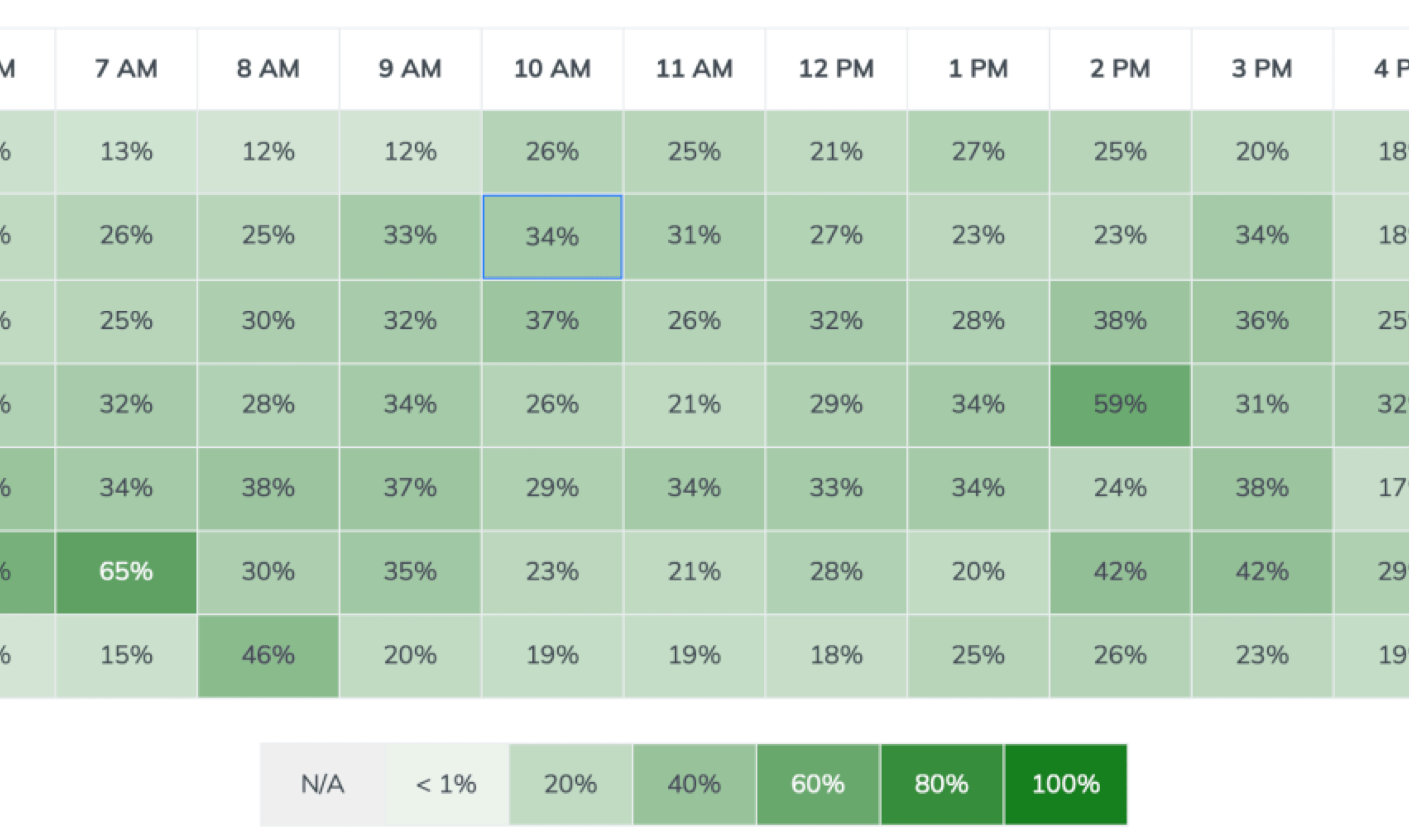
Typical savings of 30-60% on non-production spend. Production workloads remain unaffected.
Less mental work
Teams stop thinking about shutdowns. It happens on its own.
Control without chaos
Clear, consistent rules replace random decisions. Everyone follows the same process.
Zero impact on delivery
Resources are available when teams work. Nothing slows developers down.
Setup
Connect in minutes

1. Connect your cloud account

2. Grant permissions

3. Define your first schedule

4. Apply it to non-production resources
INTEGRATIONS
Works across all your AWS environments.
All resources from different accounts are available in one view. Manage schedules from one dashboard. One place for everything. Supports the most common AWS services (EC2, RDS, ECS, EKS, SageMaker, Auto Scaling Groups).
FAQ
If you’ve made it this far, these questions are for you.